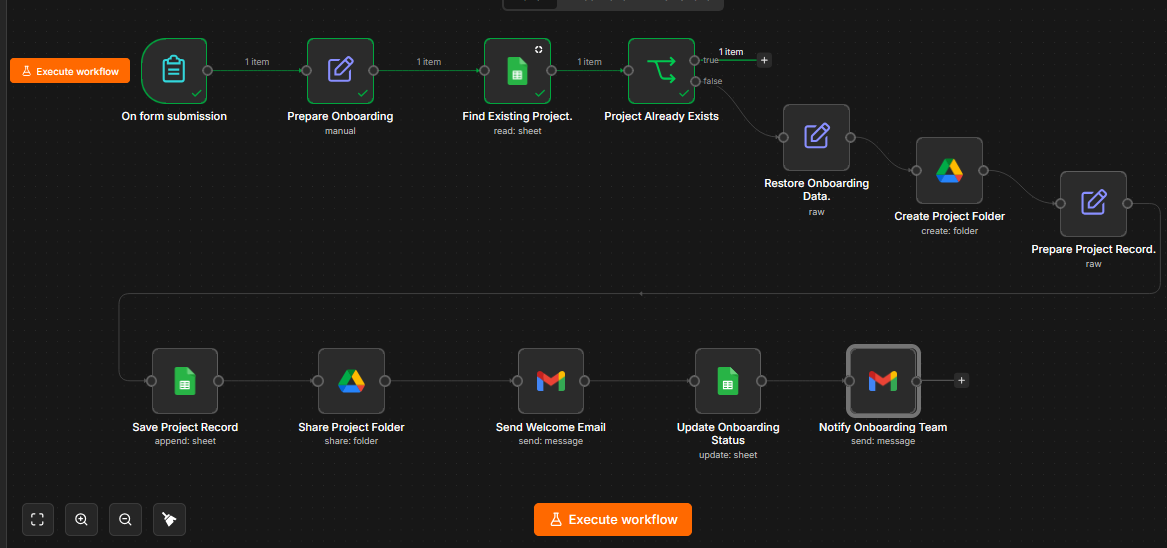
Set up a shared project folder, record client details, and send welcome instructions from one internal form.
1. Business brief
Who needs this workflow?
This workflow is designed for a small service business that repeatedly starts client projects and needs files before work can begin. The implemented example is a website agency onboarding clients for a new business website, website redesign, or ecommerce website.
The primary operator is an agency owner, project coordinator, or account manager. They submit the internal onboarding form after the client has agreed to proceed. The client receives a shared project folder and a welcome email explaining which materials to provide. The delivery team receives a separate notification containing the project information and folder link.
The operational problem
Winning a project does not automatically prepare it for delivery. Someone still needs to create a folder, name it consistently, give the right person access, enter the project into a tracker, write a welcome email, and tell the team that setup is ready. Repeating those steps manually increases the chance of an omitted instruction, an incorrect sharing address, an incomplete record, or a project being set up twice.
Materials can also arrive through different email conversations without a clear place to store them. When the team needs the client's logo, page content, or reference images, it may spend time finding the right conversation and confirming which files belong to which project.
What the automation delivers
The workflow turns a single form submission into a consistent onboarding setup. Each new project receives a folder named with its reference and project name, a row in the tracker, access for the submitted client email, and standard upload instructions. Once the welcome email is sent successfully, the tracker changes to Awaiting Materials, and an internal notification tells the team what happens next.
This gives the business a repeatable starting point and a visible record of setup progress. The client knows where to provide materials, and the team knows which project the materials belong to.
What success means
For a valid new project, success means that the correct folder and tracker record are created, the intended test client can open the shared folder, the welcome email arrives, and the internal notification identifies the correct project. For an existing reference, success means that setup stops before another folder, row, or email is created.
These are functional acceptance criteria. Reduced administration time is an intended benefit, but no before-and-after time study or commercial return has been measured for this project.
2. Business types that can use this automation
The following are suitable applications of the workflow pattern, not claims that these businesses have deployed this particular project. The current service options and welcome message are written for website work; other uses require adapting those fields and instructions.
| Business type | Typical materials needed at onboarding | How this workflow helps | Adaptation needed |
|---|---|---|---|
| Website development agencies and freelance web designers | Logos, page copy, images, brand guidelines, reference websites | Gives each accepted project a shared collection folder and standard instructions | Closest match to the current implementation; customize branding and team recipient |
| Branding and graphic design studios | Creative briefs, existing brand assets, design references, approved copy | Organizes the initial design inputs under a project reference | Replace service choices and the materials checklist |
| Digital marketing and SEO agencies | Business information, campaign briefs, brand assets, content plans | Establishes a consistent place for initial campaign materials | Adapt the welcome message; arrange advertising and website access separately |
| Content writing and publishing services | Editorial briefs, source material, style guides, manuscript files | Keeps engagement details and initial documents associated with the same project | Use suitable service types, document instructions, and naming conventions |
| Video production and editing businesses | Scripts, footage, logos, reference videos, production briefs | Provides a designated location for source files and alerts the production team | Check storage capacity and file-transfer needs for large media |
| Business consultants | Background documents, questionnaires, project briefs, existing reports | Standardizes the administrative handoff from agreement to engagement setup | Tailor requested documents and internal ownership |
| Bookkeeping and accounting practices | Client setup forms, statements, accounting exports, supporting records | Can provide a repeatable intake structure for a new engagement | Requires a deliberate review of confidentiality, access, retention, and secure document handling before use |
The common business need is repeatable project setup followed by client-supplied materials. The workflow is most useful where staff currently perform those steps manually using Google tools. It does not replace a full project-management platform, client portal, or specialist document-management system.
3. Working workflow
Entry point and information captured
The form is titled Start Client Onboarding. Its description tells the operator to complete it after the client agrees to proceed. The workflow does not itself confirm a signed contract, payment, or commercial approval; the person submitting the form makes that decision.
| Form field | Data key | Requirement |
|---|---|---|
| Client Full Name | client_name | Required |
| Client Email | client_email | Required; email field |
| Company Name | company_name | Optional |
| Project Reference | project_reference | Required; assigned by the operator |
| Project Name | project_name | Required |
| Service Type | service_type | Required dropdown |
The service choices are New Business Website, Website Redesign, and Ecommerce Website. The form also supplies submission metadata. The workflow preserves the submission timestamp in submitted_at.
Processing and decision logic
The preparation step trims surrounding spaces from the client email and converts it to lowercase. It also trims the project reference and converts it to uppercase. The reference is then used to search the tracker.
If the lookup returns a record containing project_reference, the Project Already Exists node takes its True branch. That branch has no connected actions, so processing ends. If no match is returned, the lookup supplies an empty item through its Always Output Data setting, and the False branch continues with the original prepared form data.
For new projects, the workflow creates a folder beneath Client Projects, builds the folder URL from the returned folder ID, and saves the project record. It then grants the submitted client email User / Writer access to that individual folder. Sharing is dynamically mapped to each submitted client; the temporary fixed test email is not present in the reviewed sharing configuration.
The welcome email references the saved project information and gives the client a folder link and a checklist of materials. After Gmail reports a successful send, the workflow updates the existing tracker row and sends the internal team notification.
Reviewed node inventory
| # | Node | Purpose |
|---|---|---|
| 1 | On form submission | Receives the internal onboarding request |
| 2 | Prepare Onboarding | Normalizes email and reference, preserves project details, and maps the submission timestamp |
| 3 | Find Existing Project. | Searches the tracker by project reference |
| 4 | Project Already Exists | Ends processing for a match; lets new projects continue |
| 5 | Restore Onboarding Data. | Restores prepared form information after the lookup |
| 6 | Create Project Folder | Creates the project folder inside Client Projects |
| 7 | Prepare Project Record. | Combines project details with folder ID, URL, and initial status |
| 8 | Save Project Record | Appends the initial tracker row |
| 9 | Share Project Folder | Grants the client Writer access to the new folder |
| 10 | Send Welcome Email | Sends the client project details and upload instructions |
| 11 | Update Onboarding Status | Matches the project reference and records Awaiting Materials plus a timestamp |
| 12 | Notify Onboarding Team | Sends the internal setup notification |
The reviewed connections follow this order. The email expressions refer to an existing node named Save Project Record, and both Gmail nodes use the same replacement Gmail credential that succeeded during testing.
The project tracker
The Google Sheets document is Client Onboarding Tracker. All three Sheets nodes target the same document and tab ID, gid=0; the export stores the tab's display name as Sheet1. Earlier build instructions used the label Projects, but the reviewed configuration is the reference for this document.
The tracker contains eleven mapped columns:
| Group | Columns | Business purpose |
|---|---|---|
| Project identity | project_reference, project_name, service_type | Identifies the engagement and supports repeat-project lookup |
| Client information | client_name, client_email, company_name | Records whom the project is for and who receives access |
| Intake timing | submitted_at | Preserves when the request was submitted |
| Folder information | folder_id, folder_url | Links the record to its storage location |
| Setup progress | onboarding_status, welcome_email_sent_at | Shows the recorded stage and post-send update time |
The initial status is Folder Created, with an empty welcome-email timestamp. After the welcome email succeeds, the status becomes Awaiting Materials. The update mapping contains only the project reference, status, and timestamp; other project fields are not included in that update.
The timestamp uses the time when the update node runs. During a continuous execution this follows the email send closely. During the manually resumed test, it was recorded later. It is not a retrieved Gmail delivery time, and it does not establish when the recipient read the message.
Client and team communication
The client welcome message includes the project name, reference, service, folder link, and requested materials: logos, brand guidelines, page text, images, and website examples. It asks the client to use the Google account associated with the addressed email and reply when materials have been uploaded. It explicitly asks them not to upload passwords or login credentials.
Google Drive's sharing invitation is a separate message. It can arrive before the welcome email and does not prove that the welcome-email step succeeded. This distinction was observed during the authentication failure test.
The internal notification goes to a configured team address. It supplies client and project details, the folder URL, the Awaiting Materials status, and a next action to review materials and coordinate kickoff. This notifies the team; it does not assign tasks or schedule meetings automatically.
4. Test evidence and observed results
Testing used sample client and company information with Google accounts controlled by the builder. Evidence consists of the submitted workflow export, execution screenshots, inbox screenshots, and the builder's confirmations. The export was reviewed for configuration and connections; it was not independently executed during preparation of this document.
| Scenario | Evidence and observed result | Assessment |
|---|---|---|
| New project setup | The builder confirmed automatic folder creation and a new tracker row. The sample PRJ-002 continued through the new-project path before its welcome-email failure. | Folder creation and record creation demonstrated |
| Client folder access | The second controlled account received the Drive invitation and opened the shared folder. Sharing output showed user permission with Writer role. | Opening the folder verified; uploading a file was not separately evidenced |
| Welcome email | After replacing the Gmail credential, the node returned a message ID and SENT label. The builder confirmed receipt in the second inbox. | Successful send and reported receipt |
| Status update | The update-node screenshot showed PRJ-002, Awaiting Materials, and a timestamp, with only those three fields mapped. | Successful node execution evidenced; no separate final spreadsheet screenshot supplied |
| Internal team notification | Gmail output showed SENT and INBOX. An inbox screenshot displayed Client onboarding started — PRJ-002 with the sample client and project details. | Receipt evidenced |
| Repeat project reference | The builder resubmitted the existing project. The screenshot showed one item on the True branch of Project Already Exists; downstream setup nodes did not run. | Sequential repeat setup correctly stopped in this test |
| Invalid node reference during development | The welcome node initially failed because its expression referred to a node name that did not match the saved node's name. Correcting the name resolved that error. | Mapping issue identified and corrected |
| Gmail authentication failure and recovery | Folder creation, saving, and sharing completed before Gmail failed. A newly created Gmail credential later authorized and sent successfully; the remaining steps were completed manually. | Partial failure and manual recovery observed; exact underlying credential fault was not conclusively established |
What these results establish
The evidence demonstrates the intended new-project path across the build and recovery session, plus the separate repeated-reference path. A real authentication problem also demonstrated that completed actions remain in place when a later action fails.
The evidence does not establish an uninterrupted run of all twelve final nodes from a fresh form submission after the last changes. The successful downstream steps were completed as the workflow was built and repaired. That distinction matters when presenting the test history honestly.
Cases not yet verified
Required-field and email-type settings are present in the form, but missing-data and invalid-email submission tests were not documented for this project. Those tests from earlier portfolio projects are not counted here. No separate tests establish concurrent-submission behavior, Drive upload success, revoked client permissions, storage limits, Google Sheets outages, or automatic recovery after a failure.
There is also no demonstrated production workload, long-running credential reliability test, or measured completion-rate dataset. These remain deployment-validation items rather than passing results.
5. Limitations and deployment considerations
Document collection scope
This version creates the place to collect documents and sends collection instructions. It does not watch the folder, detect new uploads, assess file completeness, send reminders, or automatically mark materials as received. Staff review uploads and client replies manually. Awaiting Materials describes the recorded process stage, not a live inspection of the folder contents.
Repeat protection and partial failures
Repeat protection depends on an existing sheet record with the same normalized project reference. It is effective for the sequential repeat case tested here, but it is not a transactional uniqueness guarantee. Two simultaneous submissions could both pass the lookup before either record is saved. Different references for the same real project also bypass the check.
A folder created just before a failed sheet append could be left without a tracker record; another submission could then create another folder. Conversely, if saving succeeds but sharing or emailing fails, a fresh submission with the same reference is stopped by the existing-record check. It will not resume the unfinished setup automatically.
The observed recovery used the editor to continue from the failed email step with existing execution data. A live deployment needs a defined recovery procedure and appropriate failure visibility. The current export has no dedicated error workflow, recovery branch, or explicit retry settings.
Status interpretation
The status update occurs after the welcome send and before the internal notification. A later team-email failure could leave the tracker at Awaiting Materials even though the team notification was not delivered. Similarly, a successful welcome send followed by an unsuccessful sheet update would leave an outdated status. These events should be investigated using execution history rather than assuming the status alone proves every action completed.
Access and operating environment
The exported workflow is inactive and was tested on a local n8n installation. No form authentication is configured in the reviewed export, although the business design is an internal staff form. Before live use, restrict that form to intended operators, configure suitable hosting and access, and validate the connected accounts and business destinations.
The sharing configuration gives the submitted client Writer access to the individual project folder. Existing inherited permissions and business sharing policies also need review in the deployment environment. Collection of confidential accounting or other sensitive business material requires access and retention decisions appropriate to that business; those controls are not supplied by this portfolio workflow alone.
Several expressions read the first item from earlier nodes. This is consistent with one form submission per execution. Reusing the workflow for bulk imports would require revisiting item mapping.
Configuration review outcome
The reviewed export contains twelve connected nodes, an empty True branch for existing projects, matching spreadsheet destinations, dynamic folder-sharing email, and a narrowly mapped status update. Its structure matches the demonstrated core behavior. No additional node is necessary to describe this portfolio version accurately; production reliability improvements should be scoped separately.
The original export includes account-specific resource identifiers, credential references, and a fixed internal notification address. Keep that working export as a configuration backup. A publicly downloadable template should be sanitized separately; this document does not include those private identifiers.
6. Client-facing case study
Turning an accepted project into an organized client onboarding process
The challenge. Small service teams often begin each new engagement by repeating the same administrative work: creating folders, arranging access, copying details into a tracker, sending instructions, and notifying colleagues. When these steps depend on individual memory, the project can be technically accepted but operationally unprepared.
The solution. I built an n8n workflow that connects an internal onboarding form with Google Drive, Google Sheets, and Gmail. Staff enter the client and project information once. The workflow checks the project reference, creates a dedicated folder for a new project, grants the client access, records the engagement, and sends clear instructions for supplying materials. After the welcome email succeeds, it updates the tracker and notifies the team.
The client experience. The client receives a project-specific folder link and a practical materials checklist. For the website-agency example, this includes logos, page copy, images, and reference websites. The client has a clear next action and a consistent location for those materials.
The business experience. The team receives a structured project record and an internal notification linking to the folder. An existing-reference check helps prevent staff from accidentally repeating setup for a recorded project. The record distinguishes the initial Folder Created stage from Awaiting Materials after the welcome-email step.
Verified results. Testing with controlled accounts demonstrated folder creation, record creation, client folder access, welcome-email receipt, a successful status-update operation, and receipt of the internal notification. Resubmitting PRJ-002 took the existing-project branch and skipped the setup actions. A Gmail authentication failure was diagnosed during development, and sending succeeded after creating a replacement credential. Recovery was manual and preserved the work already completed.
What a business receives. The implemented solution comprises an internal intake form, a twelve-node automation, a project tracker with eleven mapped fields, project folder creation and sharing, a client welcome email, an internal team notification, and repeat-reference handling. Business-specific branding, service choices, requested materials, account connections, and deployment arrangements must be configured for the receiving organization.
Best-fit businesses. Website agencies are the direct fit. Branding studios, marketing agencies, content services, video businesses, and consultancies can adapt the same setup process. Accounting practices may use a similar intake pattern after reviewing their document-security requirements.
Boundaries. This is a tested portfolio implementation of onboarding setup and document-collection preparation. It does not yet include automatic document monitoring, reminders, payment verification, contract signing, or production recovery. No client revenue, labor savings, or percentage improvement is claimed.
7. Results and future measurement
The verified implementation contains 12 nodes, 3 external Google services, 6 form fields, and 11 mapped tracker columns. These are configuration counts, not commercial performance metrics. The repeat-reference test demonstrated that the downstream setup path was skipped for an already recorded project.
For a future client deployment, measure manual administrative effort before rollout and compare it with representative automated runs. Separate staff effort from elapsed workflow time, since the time a client takes to upload materials is outside this workflow's control.
| Metric | How to measure it | Current evidence |
|---|---|---|
| Staff administration time per project | Time the manual setup process and the staff work still required after automation | Not measured |
| Setup completion rate | Count new-project runs completing all expected actions against total eligible submissions | No production dataset |
| Repeat setup avoided | Count existing-reference submissions routed to the stop branch | One documented repeated-reference test |
| Time to welcome email | Compare form submission time with message send evidence | Not benchmarked; the recovery test is unsuitable for a normal-run estimate |
| Time until materials arrive | Record a separately verified materials-received time | Not collected by the current workflow |
8. Portfolio page copy
Client Onboarding Automation
A consistent project start, from one internal form.
Built with n8n, Google Drive, Google Sheets, and Gmail, this workflow creates a project folder, grants client access, records the engagement, sends material-upload instructions, and notifies the team. It checks the project reference first so an already recorded project does not repeat the setup process.
Designed around a website agency, the approach can be adapted for creative studios, marketing teams, content services, and consultancies that collect client materials before starting delivery.
Testing with sample projects and controlled accounts demonstrated client folder access, welcome and internal emails, status updates, and a repeated-reference stop. The project also includes a documented authentication failure and manual recovery example. Upload monitoring and automated reminders are outside the current scope.
Project type: Portfolio implementation Primary outcome: Organized client setup and a clear handoff into materials collection Tools: n8n · Google Drive · Google Sheets · Gmail
---
Evidence basis: Client Onboarding & Document Collection.json, supplied execution and inbox screenshots from 21–22 September 2026, and the builder's confirmations in the project conversation. Configuration statements are grounded in the reviewed export; proposed industry applications are adaptations, and untested cases are identified above. Personal email addresses, credential identifiers, and private resource links are intentionally omitted from this document.